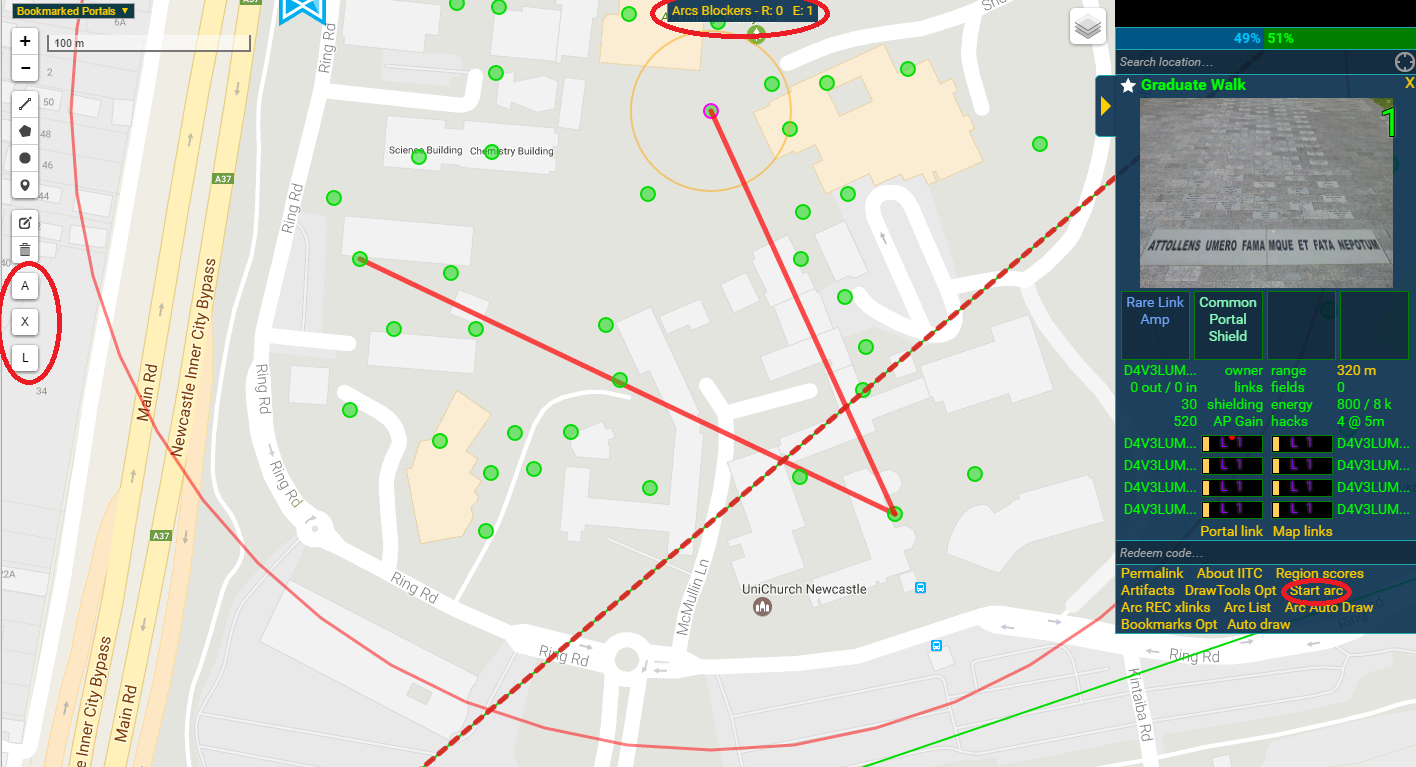
Because Arc knows portal details including name and coordinates, you need to select the portal with your cursor in order to be able to add it to Arc.
The 'A' button on the left of the screen will start/end an arc. Additionally, the keyboard shortcut alt + a to start/end an arc is very helpful. Finally, the "start arc/end arc" text in the portal options can also be used.
Once the first portal has been selected the 'A' button will be highlighted red to indicate that the arc is currently underway. Simply select the end portal for the link and use any of the above again to complete the link.
Pressing the "L" button on the left or clicking "Arcs List" will bring up a dialogue with the following
Tip: Single click on any portal name to load that portals info. Double click to go to that portal.
Tip 2: Change the Arc colour then left click the colour block to the left on the Arc list to change that Arcs colour.
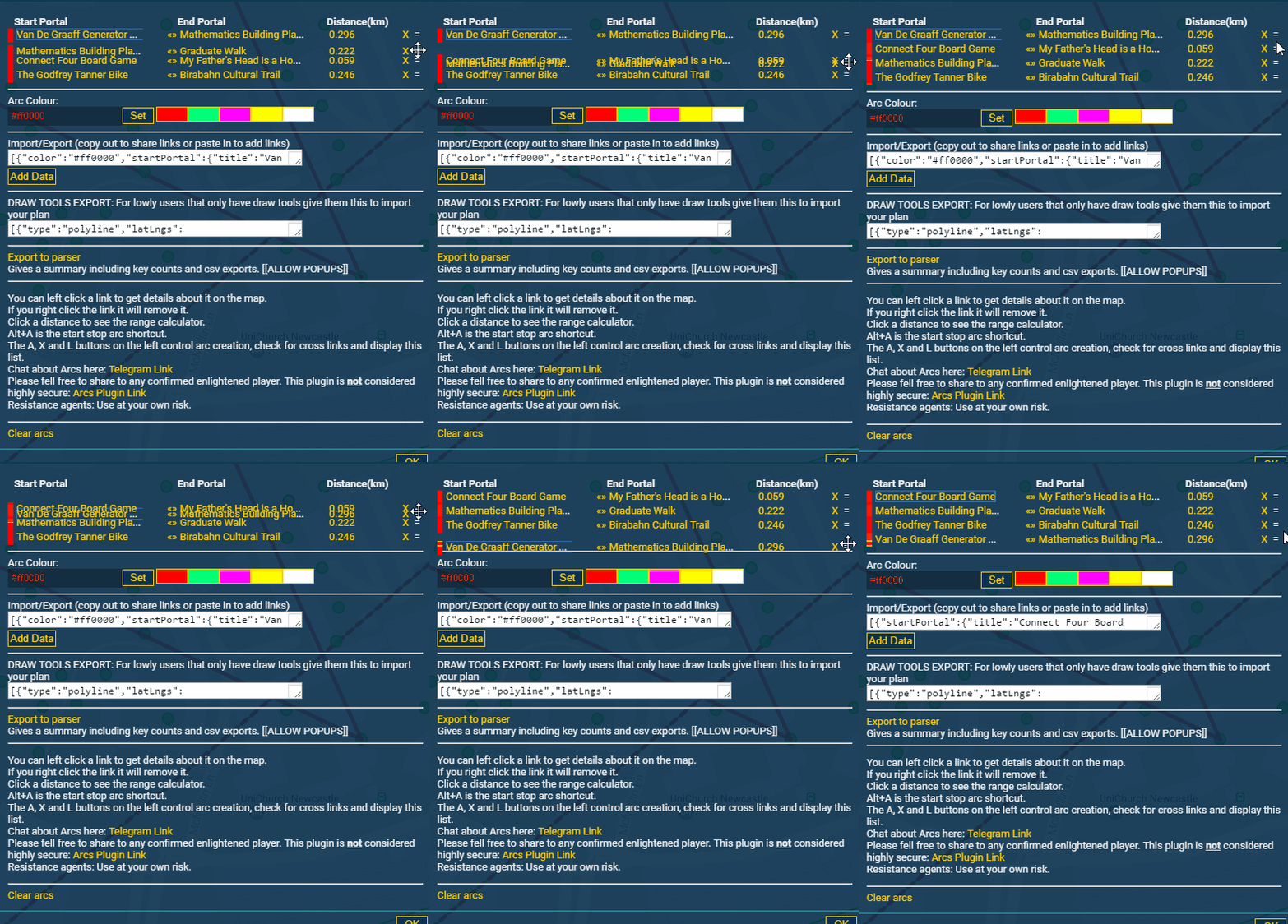
You are able to change the order of the links in the Arc list by dragging the '=' icon or using the arrows to move the link up or down by one position.
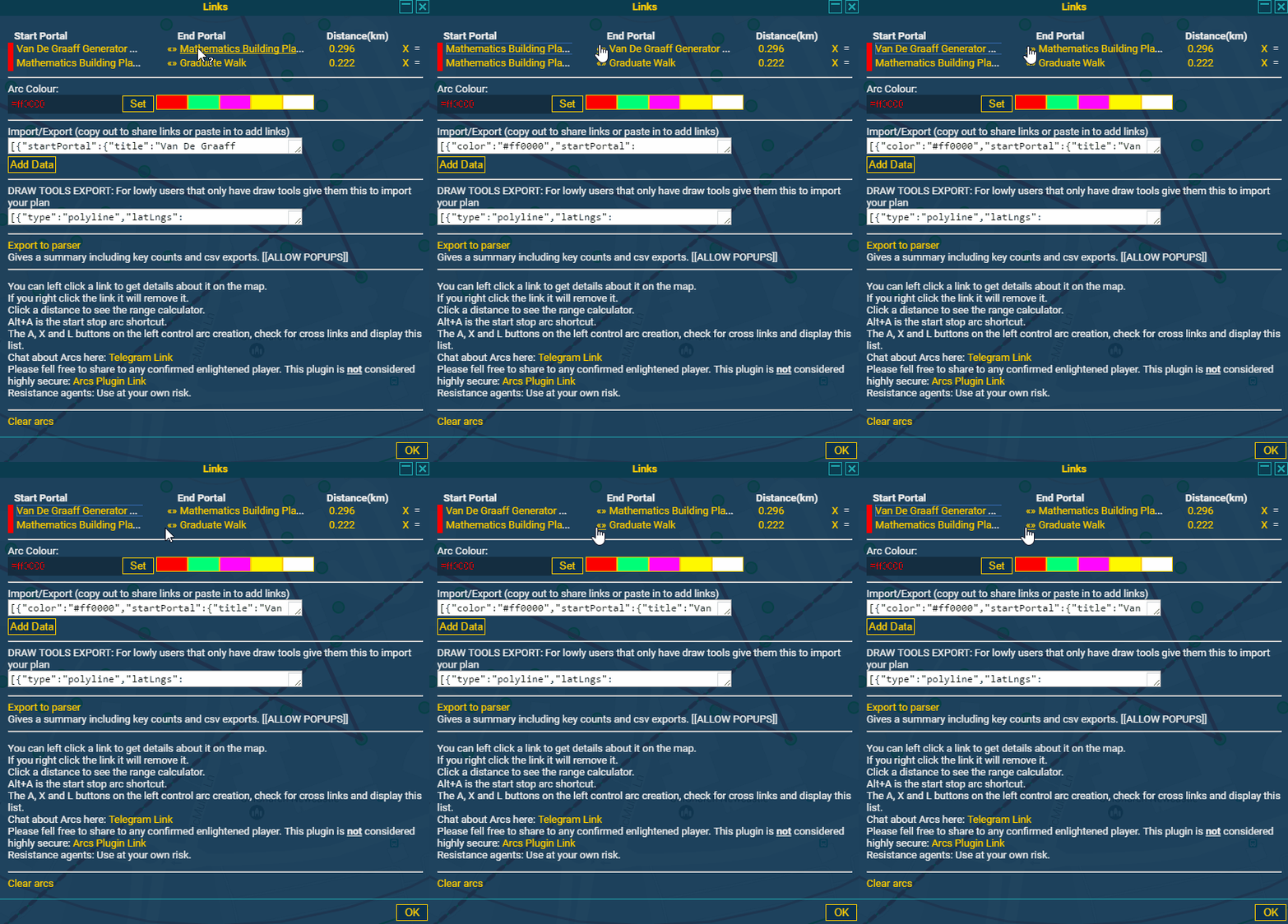
You can change the link direction by clicking the double ended arrow between the start/end portal names in the Arc list.
Arcs can be removed in the following ways:
All arcs can be removed with the "Clear arcs" option at the bottom of the Arcs list.
Left clicking an arc shows the following popup.
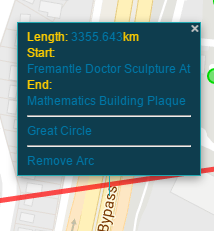
This is useful for quickly getting the arc portal details or travelling to the end portals.
An option to render a great circle is available. This will render a circle following that arc path around the Earth taking into account its curvature. This is great for planning layers on really large fields. Remove this great circle by right-clicking it.
Finally clicking on the link distance will display the range calculator that can be used to check if it is possible to make the link.
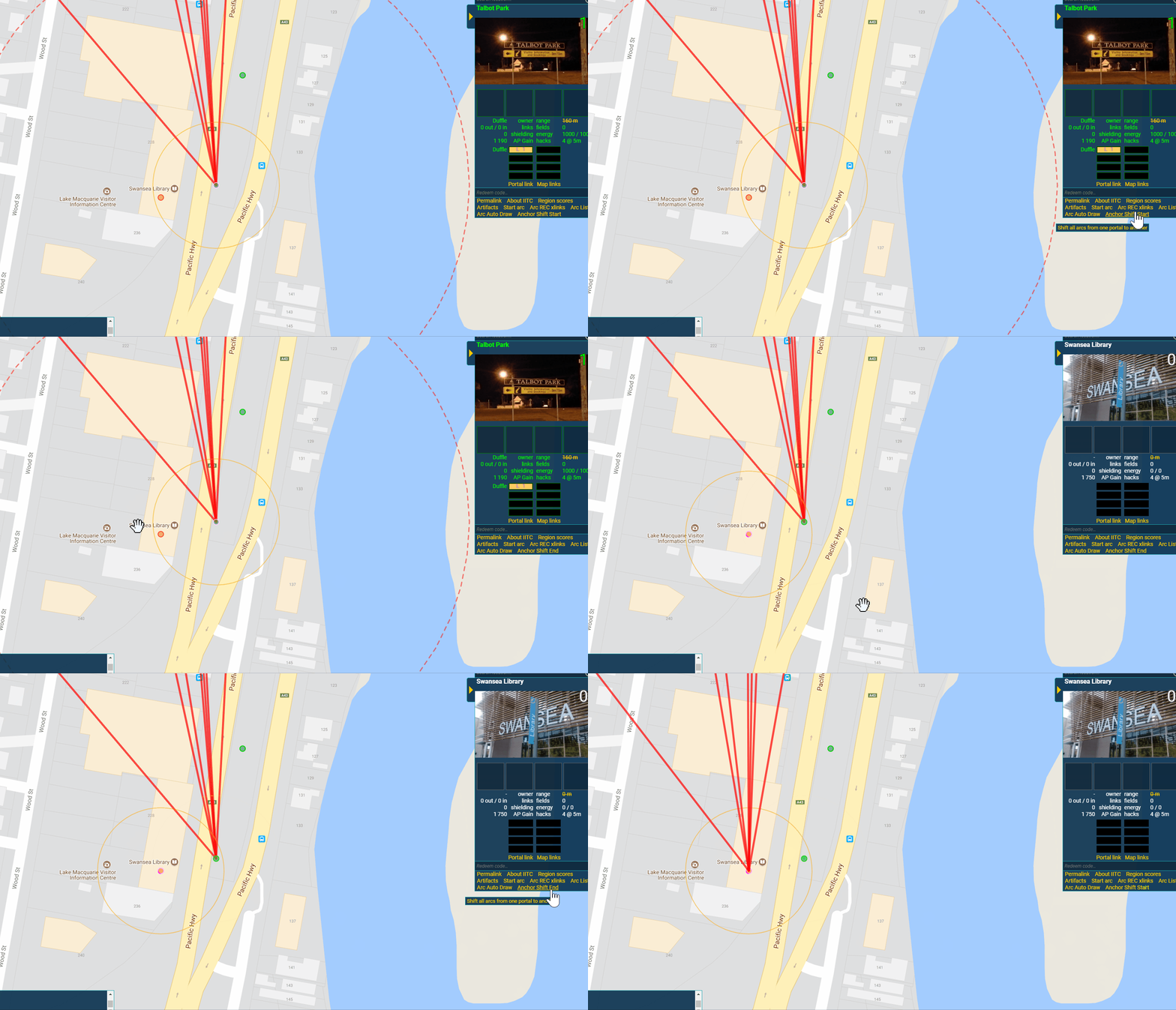
You can move all Arcs to another portal using the Start/End Anchor Shift option
The Arc Parser can show in a more readable format, key requirements for each portal, range calculations and various other CSV data.
Drawtools is shown in Arc list popup. It is easily available to give to agents without Arc.